Vibe Coding: Personal Library App
Contents
1. Demo, explore, then the loop
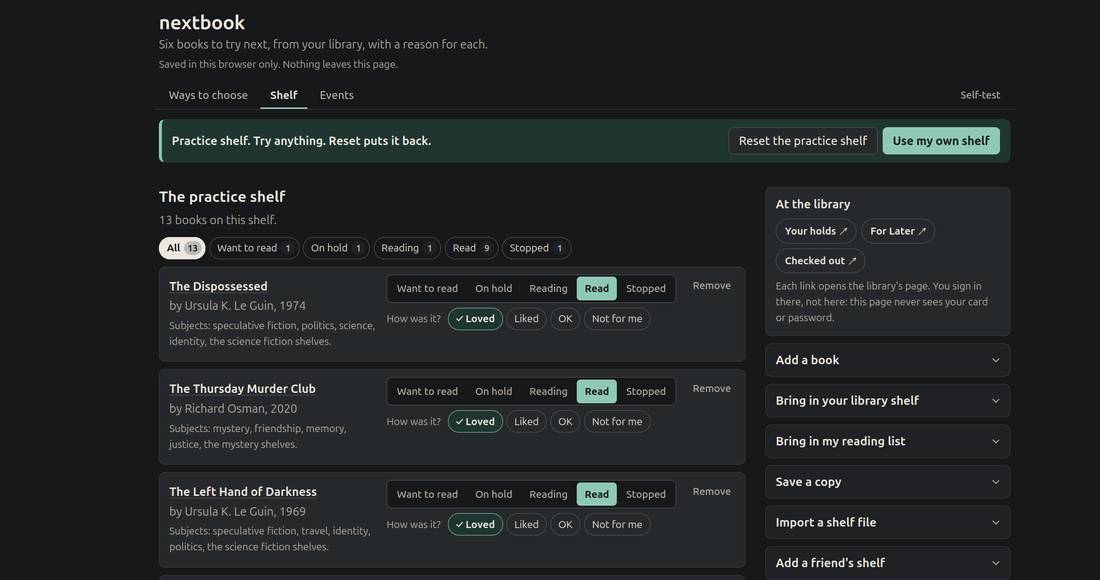
nextbook
Welcome. Today we'll use AI to add a feature to a small reading app. You'll decide how it should choose books, ask the AI to build it, and check whether it does what you asked. You'll leave with a copy you can use at home.
Nextbook keeps a list of books and helps you choose what to read next. We're starting with a working app, so you can spend your time deciding how you want it to work.
You might want more books like one you loved, or something from a part of the library you never visit. We'll each build one way to choose, with a reason you can read under each suggestion.
Terms
There are a few common terms to get familiar with:
- Model
- LLM
- Chatbot
- Agent
- Prompt
- Vibe-coding
A model is the AI itself, the equivalent of the brain. It only ever takes text in and writes text out.
An LLM is a large language model: a model trained on a huge amount of writing.
A chatbot is a computer program you chat with by typing, or by speaking. ChatGPT, Gemini and Claude are chatbots.
An agent is an LLM with software around it that lets it act. A chatbot waits for you. An agent can act.
A prompt is what you type, or say, to start it off. Usually this refers to the initial set of instructions given to the model.
Vibe-coding is using AI to create software for you. You tell it what you want and it writes the code. You don't need to know anything about coding, but it does help. It's even more helpful to know as much as possible about the problem you're trying to solve.
The app, working
- Your shelf, with ratings
- Each book links to the library's own page
- The app fits in one file. No app account.
- Your shelf is saved separately, in this browser only.
This shelf is a list of books with ratings. You can filter it, look at events, and follow a link to the library's page for a book.
Today we have 30 example books and a saved list of events. The app can choose from those books, but it can't search the whole library or check whether a book is available now. Follow the library link to check that.
We've kept the data small so we can work within the library's access limits. A broader version would need a supported way to get more library data.
The AI will write the code for us. Once built, this app runs without asking an AI anything.
One finished way of choosing
- A mode: you give it your shelf, it gives back up to six books
- A reason for each book, in words
- A link to the library's page
- Nothing to choose? It says why.
A mode is a way of choosing books. It takes your shelf, applies a rule, and gives you up to six suggestions. Each one has a reason and a link.
This example looks for parts of the collection the reader hasn't explored. The reason under each book shows what on the shelf led to the choice.
With an empty shelf, it needs to explain why it can't choose. That explanation is part of what we're building.
The library already has "You may also like"
- Its own list, on every book's page
- Licensed to the library
- We link to it. We never copy it.
The library already offers suggestions under “You may also like”. We link to those pages, and leave that licensed service on the library's site.
Which of these books would you read, and why?
In your app, you get to decide the rule. You could ask it to explore a new subject, follow a path through a topic, or compare two made-up readers' shelves.
Try nextbook
- Open the app in your browser
- Rate a practice book and try a shelf filter
- Find an event or open a book's library page
- Use the practice shelf; save your own books for home
Open the app in your browser.
Try rating a practice book and changing the shelf filter. You can also look at an event or open a library link. Use the made-up shelf today; you can add your own books at home.
The loop
- Describe it
- Read the plan
- Build one thing
- Test it
- Fix it
- Write it down
These are the steps we'll use to build your feature with AI. We call it a loop because you can test and fix it again until it works.
First you describe what you want, with the AI asking questions to help you work it out. Then you read its plan, let it build one thing, and try it yourself. If something goes wrong, you describe the problem and ask for a fix.
At the end, we'll save the app and write down what works and what still needs attention.
2. Connect the app and AI
Your agent can read and change files
- Read the app's code, book data, and instructions
- With sharing enabled, read the shelf you have open
- Send book changes straight to the app's inbox
- Reload the app and check what changed
- No shelf export needed to send a change
An agent is an AI with tools that let it read and change files. In this workshop, those files include the app's code, its book data, and instructions for working on it.
You can ask your agent to add a book or mark one as read. It writes the change to the app's inbox. When we reload, the app brings in the change and offers “Undo these changes”. You don't need to export your shelf first.
You can also enable a local connection that lets your agent read the shelf you have open, without exporting it. The app shows when sharing is on. The agent can then check a book's current rating before changing it.
Before reading or writing, the agent warns that the book titles and details it works with become part of the AI conversation. Sharing is optional. We'll use practice data today.
Try an agent skill
/use-nextbook
- Ask it to read a practice book's rating, then change it
- Check the change in the app
- Click Undo these changes
This command gives your agent instructions for working with Nextbook. Those instructions are called an agent skill. Think of it as a short guide to a particular job: which tools to use, what to check, and what to explain to you. In Claude you prefix the skill name with a slash and that executes the skill.
The Nextbook skill explains how to connect to the app, read a book's rating, and send a change back. It also tells the agent to explain what you're sharing with the AI. We can reuse that guide whenever we need it, instead of typing all those instructions again.
Type /use-nextbook, then ask: “Pick one book on the practice shelf and tell me its rating.” The agent should set up the connection and direct you to the app in your browser. Your app tab will refresh by itself. Look for the message saying sharing is on.
Now ask it to change that rating to a different one. Check the book in the app, then click “Undo these changes”. A skill gives the agent a procedure to follow; checking the result is still part of the job.
Copy to web AI, paste back
- Find Want a second opinion?
- Read prompt, click Copy
- Paste into free web AI chat
- Copy answer back into app
- Click Read the answer
Not everyone can afford a subscription for an AI agent, so for some of the things that take curation, like recommending books, you can use a free web AI by cutting and pasting.
This box lets you ask an AI for help choosing among the books the app has found. You carry the question and answer between the two windows.
Read the words in the box before copying them. The prompt includes possible books and broad reading interests, but leaves out titles on your shelf. Paste it into the chat, then bring the answer back and click “Read the answer”.
The app checks that the AI chose from the books it was offered. It drops choices outside that list and gets the book titles and library links from its own data. You can read the AI's explanation and decide whether it helps.
You choose what goes to the AI
- The agent can use files and the shelf you choose to share
- A web chat gets the words you paste into it
- Nextbook works without either
These are two ways to connect the app with AI. The agent can work with files, use a shared shelf, and build your feature. With a web chat, you move the text yourself. The app sends nothing to an AI on its own, and you can keep using it without one.
3. Choose, then be interviewed
Pick something to build
choose
- Everyone gets 3 different options
- Pick one, ask for the full menu, or describe your own
Type “choose”. The agent will give you three options. You can pick one, ask to see all the choices, or describe your own idea.
If your idea needs another person's shelf, we'll make one up. Once you've chosen, the agent will ask about the person who will use it.
The interview
- The AI asks. You answer. One question at a time.
- This is the design work.
The interview helps you work out what you mean before the AI builds anything. It asks one question at a time, and your answers become the design.
Imagine a reader who wants a book for their bus ride. Do they want a familiar subject or something new? What would make a suggestion useless to them? Those answers give the AI something it can build and you can check.
It also needs to tell you what the data can support. If you ask for a book you can finish in an hour, but the list has no page counts, you'll need to agree on a simpler rule.
If you don't know an answer, type “I don't know”, or type “idk”. Ask it to help you choose a smaller version.
The plan
plan
show me the plan
app/PLAN.md: the mode in a sentence, the output of up to six books, the rule, two ways to test it- Read it out. Change anything. No building until you say `build it`.
When you've answered the questions, type “plan”, then “show me the plan”. The agent will save it in a file called PLAN.md.
Read the rule it proposes. Could you explain how it will pick a book? Does that match what you wanted? Ask it to change anything that doesn't fit. It's much easier to correct a sentence now than a working app later.
The plan should also name two ways to check the result. Wait until you're happy with it before telling the agent to build.
4. Build
Build the mode
build it
show me
- The agent adds your mode and checks it.
- Read the last line:
OK <your mode>: N passed, 0 failed. - Try it with the practice shelf.
Type “build it”. The agent will write your mode and run checks on it. When it's finished, look for the line saying how many checks passed and whether any failed. Ask it to fix failures before moving on.
Type “show me”. The agent will tell you what to try. Switch to your app tab. It updates by itself when your mode is ready. Find your mode and try it with the practice shelf.
The checks catch some mistakes. You'll still need to see whether the choices and their reasons make sense.
5. Test and fix
Try to break it
test it
fix it
- An empty shelf
- One book
- Only "not for me" ratings
- A book not in the data
- Fewer than six results
- Try one case yourself. Tell the assistant what happened.
- Fix one thing. Reload. Try it again.
Now try a case that might cause trouble. What happens with an empty shelf, or when every rating says “not for me”? Pick one of these cases and try it yourself.
An empty result can be correct, but the app should tell you why. Read the reasons as well as the book titles.
Tell the agent what you tried, what you expected, and what happened. For example: “I removed every book, but it still says these suggestions are based on my favourites.” Ask it to fix that, reload the app, and try the same case again.
Keep the plan up to date. Anything you can't fix goes under “Still broken”, so you know where to start next time.
6. Reflect and prepare
Get ready to share
done
- It writes your notes and makes the take-home file
- Open that file. Check your mode appears and works
- Read the notes: what it does, how to use it, what is still broken
Type “done”. The agent will write your notes and make the file you can take home.
Open that file and try your mode. Check that the notes explain how to use it and list any problems that remain. If something is missing, tell the agent now.
7. Show your neighbour
The story of the software
- Who's using it, and why
- What they do, in order
- What they see when they're done
Before you describe what you want built, tell the story of someone using it. Who they are, why they use this software, what they do first, and what they see at the end. The AI makes up whatever you leave out. You don't need the full story before you start. It can be worked out with the AI, through a chat or a prototype, but you do need it before you start building. And don't let the AI tell your story.
Vibe-coding flow
- Research
- Interview (now/goals)
- Design and plan
- Implement (orchestrate)
- Test
- Review (back to #4)
- Reflect
This is the general flow of a vibe-coding project that is more serious that a quick prototype.
Start with research, have your agent go find detailed information about the problem and other open source software that exists already. Work with your agent until you understand this research.
Then have your agent do a detailed interview of your current practice and what your goals are for the outcome.
Work together to create a design and plan, then give that to an agent to implement. I generally tell an agent to act as an orchestrator or manager of many subagents. You can ask it it to test and review all the code at this point too.
After the implementation is complete it needs a final test and review. You can then keep looping on implementing, testing and reviewing until no problems are found.
Finally, I really like to add an optional reflection phase where I ask the agent to review the entire process, evaluate what went wrong and skills, memories or other tools could be created or updated so that it avoids the problems next time.
Build one trip through it
- The shortest path that still helps
- Something you can open today
- Then the next thing, one at a time
Build the shortest trip through that story that still helps someone, and make it something you can open today. One screen, one job done. Then add the next thing, one at a time, and look at what came out. Building is getting quick, quick enough to throw out a first attempt and start again. But using the thing you've made is the only way to find out what you should have built.
Be honest, set expectations
- How much coding you've done
- How well you know the problem area
- Prototype → occasional tool → daily tool you rely on
Be honest with the agent so it knows how to talk to you and what it needs to take responsibility for. It will ask for direction based on those answers. Don't claim to know more than you do, and ask it to explain the important decisions, both the ones you ask it to make and the ones it asks you to make. Tell it your expectations for what it is building so it knows how much effort to put into the design and plan. Start with prototypes, but you can build for the most important parts of your business. It just takes more time.
8. Take it home
What opens at home
- One file,
nextbook.html. Double-click it. No internet, no account. - Your shelf starts empty at home: add your own books
- Copying the app file does not copy your saved shelf
- Use Save a copy to back it up or move it
At home, double-click nextbook.html to open it in a browser. You can start adding your own books there. Once you switch to your own shelf, the shelf screen can bring in a reading list exported from Goodreads or StoryGraph, and you can import from your TPL account too but it's a bit awkward.
The app file and your saved shelf are separate. The shelf stays in the browser where you entered it. To move it to another computer or keep a backup, use “Save a copy” and keep that file too.
Your take-home folder also has notes for continuing with an AI. They explain what you built and what still needs work.
The AI built it.
The app never calls the AI.
- Your shelf stays in your browser
- A library card belongs to one city. A file doesn't.
- If you move away, your reading list comes with you.
The AI helped build a tool you can keep. You can use it without an AI account, and the shelf you add at home stays in your browser.
A reading list can be personal. Keeping it on your own computer gives you more control over where it goes. If you change computers, take both the app and your exported shelf with you.